How to link a Social Network account to your My eQuals account
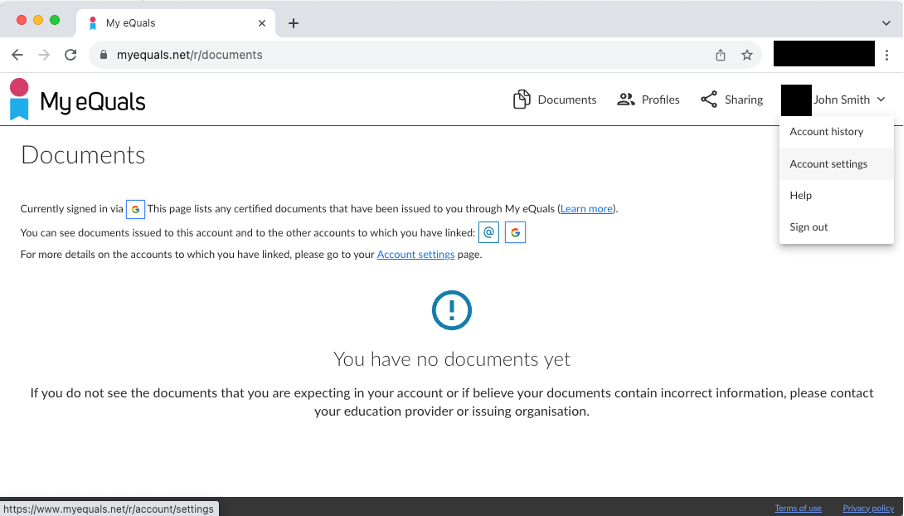
You’ll need to sign into your My eQuals account and go to your account settings; this can be found in the top right of My eQuals, under your name.
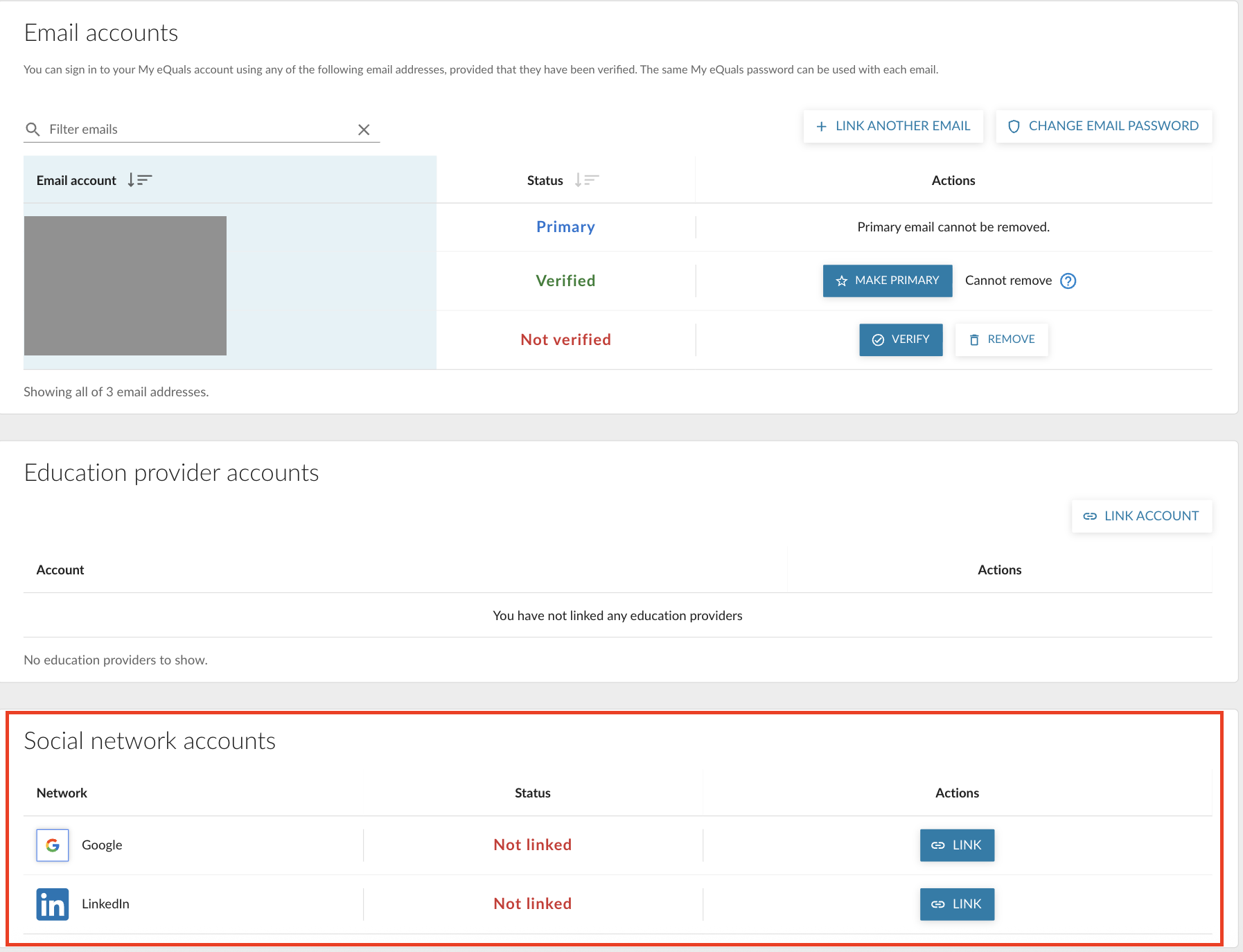
In your account settings, scroll to the bottom of the page.
Here you will find the Social Network Accounts section.
You have the option of adding a Google Account or LinkedIn Account account to your My eQuals account.
To add one of the above, click the LINK button next to the type of social network account you would like to add.
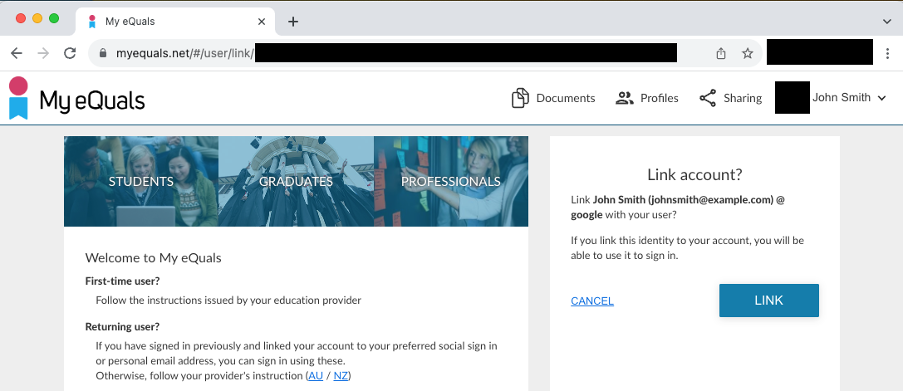
If you are logged in with the Social Network already you will be taken to a confirmation page. By clicking Link at this point, you will link your social network account.
If you are not currently signed in with a social network account, you will be taken to that provider’s login.
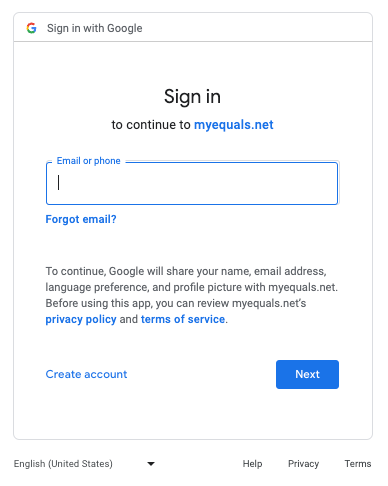
After you have logged in with the provider you will be returned to My eQuals to confirm you would like to link the account.
Once you have linked a Social Network account you will see it linked in your account settings, as below:
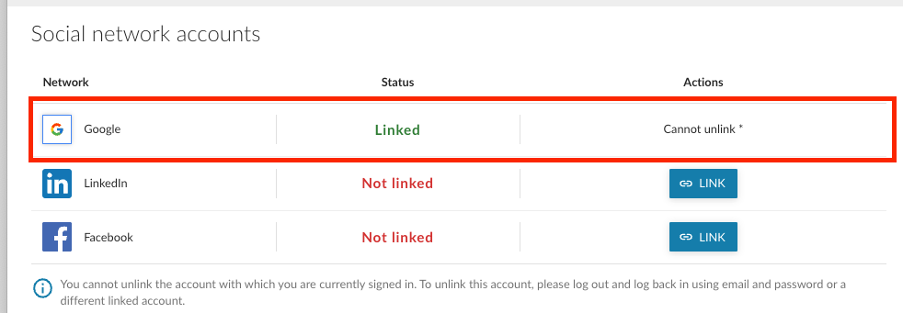
After the account is successfully linked you may use it to log into My eQuals.