
How to merge your two My eQuals email accounts
To consolidate two email accounts into a single account and access all your documents, follow the steps below. Please ensure that you have full access to both accounts. If you have lost access to any account, you must recover the access before proceeding with the merge.
To merge your email accounts and access all your documents in one place, follow these steps:
Step 1: Begin by completing the following actions to avoid any potential issues:
If you are logged into your institution account, log out.
Log out of any account from My eQuals if you are currently logged in.
Step 2: Log in to the learner portal at https://www.myequals.net using your first account email address.
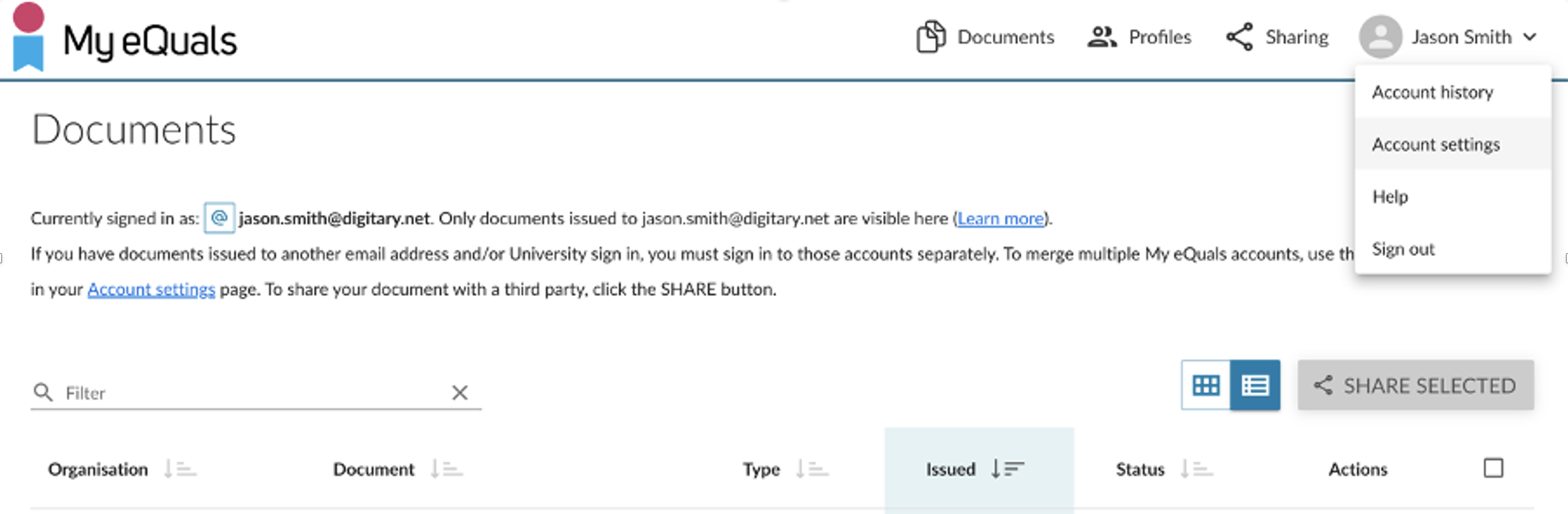
Step 3: Click on your name located in the top right-hand corner and select "Account settings" from the submenu.
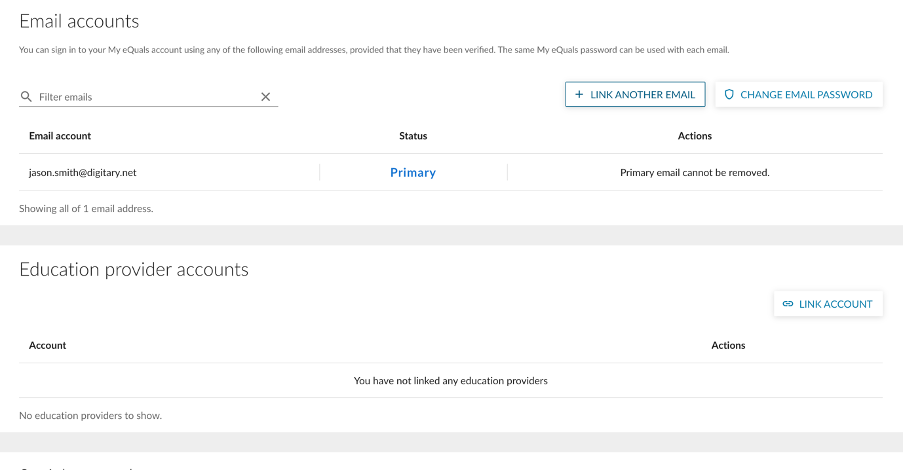
Step 4: Within the "Email accounts" section, click on the "LINK ANOTHER EMAIL" button.
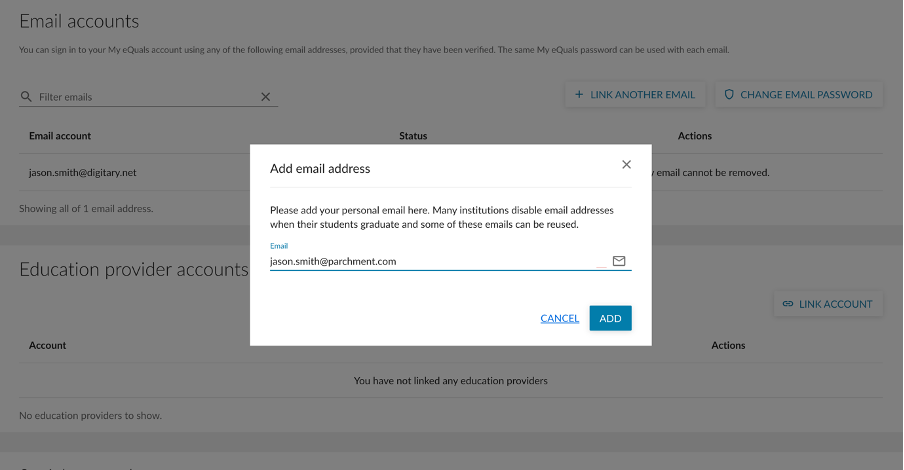
Step 5: An "Add email address" window will appear. Enter the email address of your second account, which you want to merge into your first account, and click the "ADD" button.
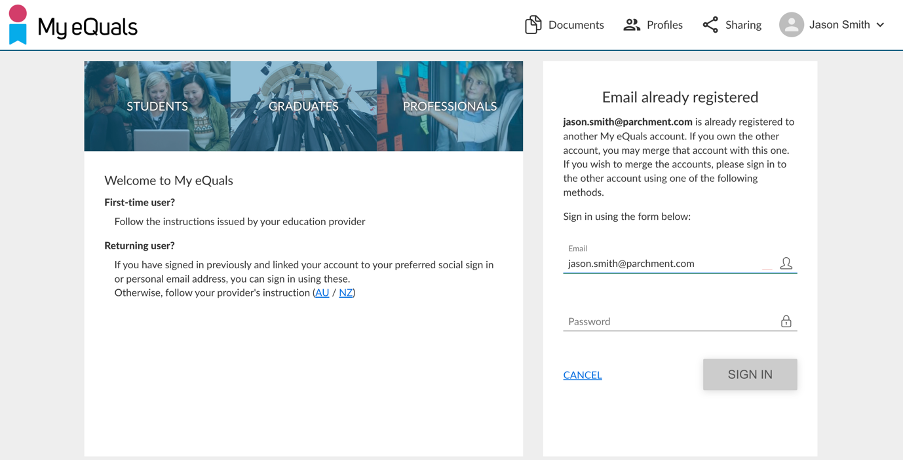
Step 6: You will be redirected to the 'Email already registered' page. Please enter the password for your second account and click the "SIGN IN" button.
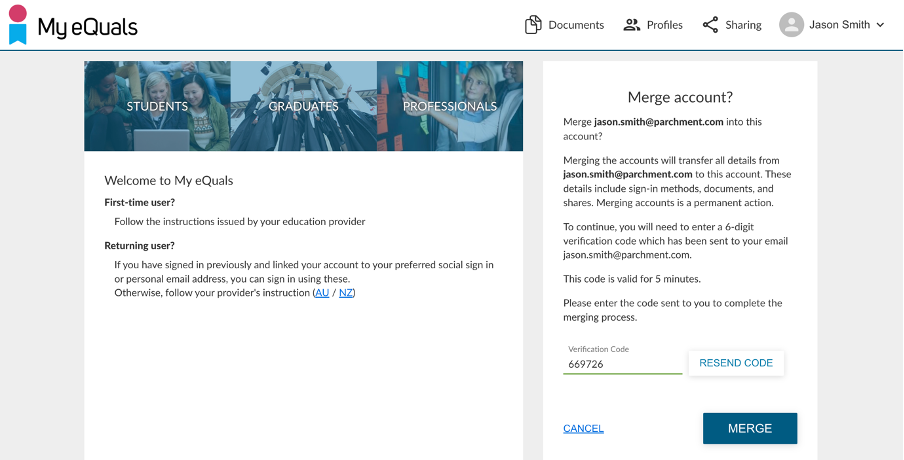
Step 7: On the 'Merge account' page, a 6-digit verification code will be sent to your second email address. Check your email, obtain the code, and enter it here. Then, click on the "MERGE" button to confirm the merge.
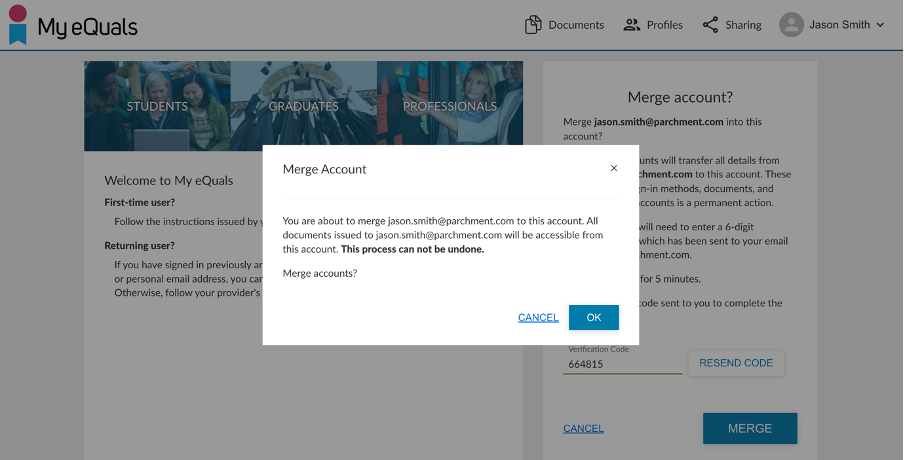
Step 8: A warning message will appear in a new window letting you know that once the merge is executed, it is not possible to reverse it. Click the "OK" button to proceed with the merge.
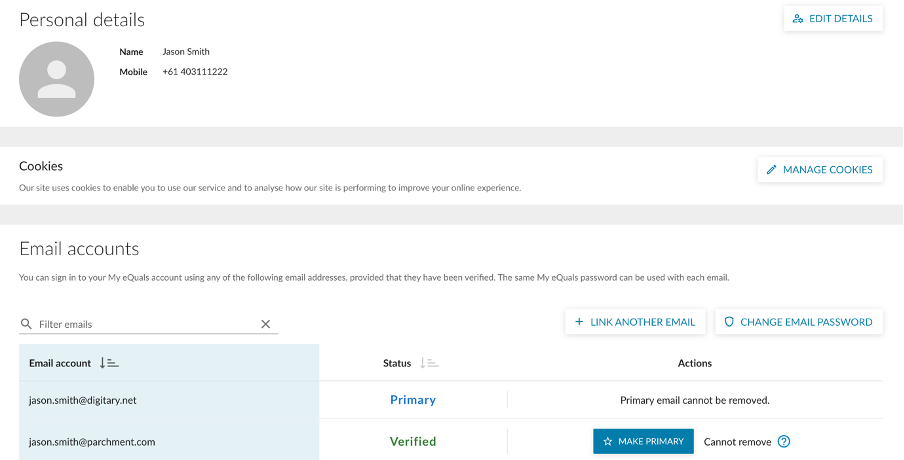
Following these steps will merge both of your accounts, consolidating all the documents into a single account. Both email addresses will be visible in your email account section, and you can designate any of them as the primary address.
All linked email addresses can be used to access your account using the password from the first email account.
If you have come across any difficulty merging your accounts, try the following and repeat the steps above:
If you are logged into your institution account, log out.
Log out of any account from My eQuals if you are currently logged in.
Clear your cookies and cache if possible.
Perform a hard refresh if possible (Hold down Command, Shift, and click the 'R' key for Mac).
Close all tabs in your browser and then close the browser entirely.