How to link an email to your account
To link a personal email to an existing account, follow these steps:
Step 1: Visit My eQuals learner portal at https://www.myequals.net and log in.
Step 2: Click on your name located in the top right-hand corner, and then select "Account settings" from the dropdown.
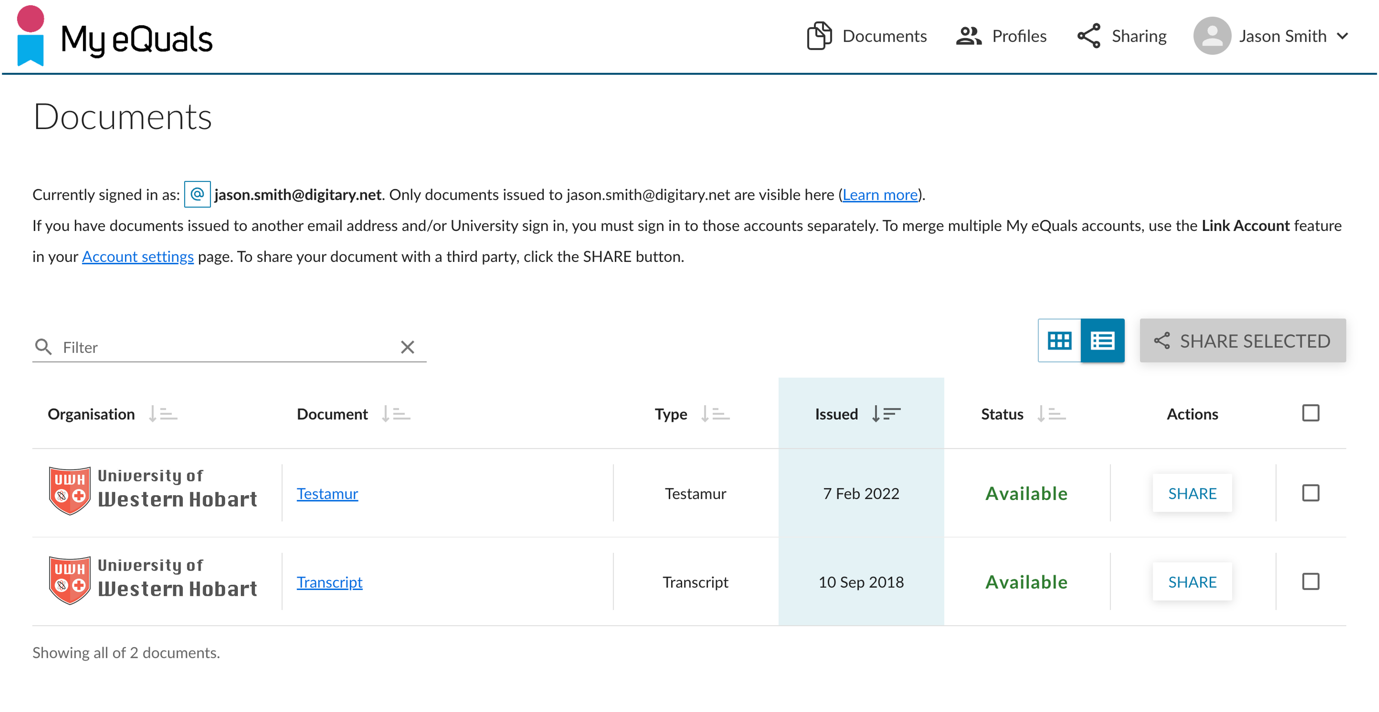
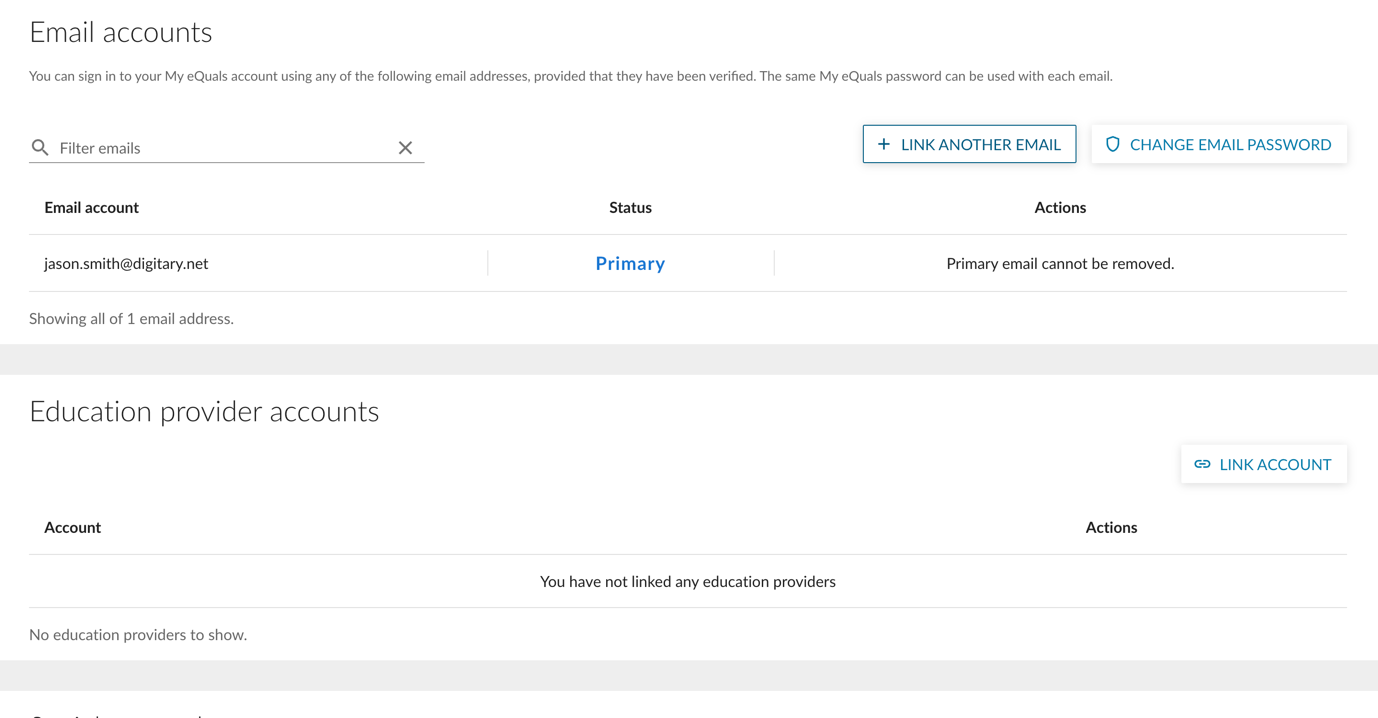
Step 3: Navigate to the "Email accounts" section and click on the "LINK ANOTHER EMAIL" button.
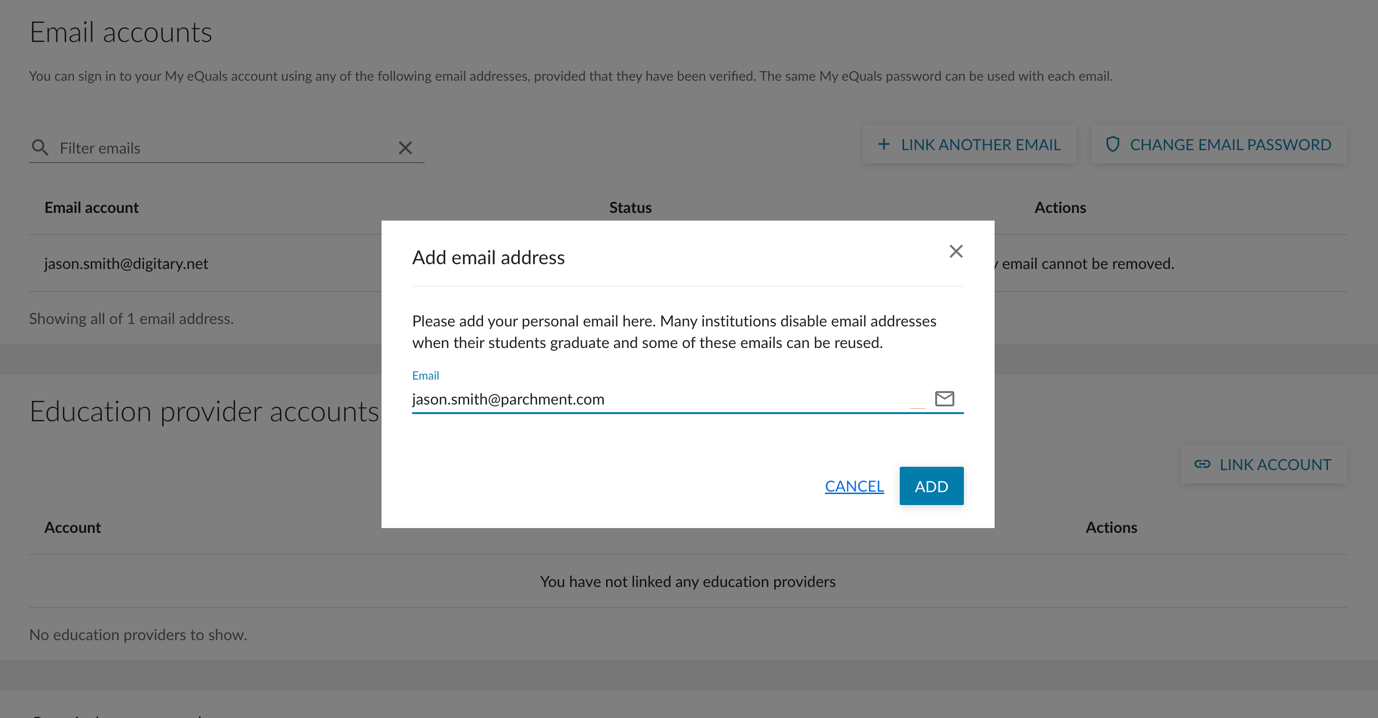
Step 4: A window titled "Add email address" will appear. Enter the personal email address you wish to link and click on the "ADD" button.
Step 5: An email containing a verification code will be sent to the provided email address.
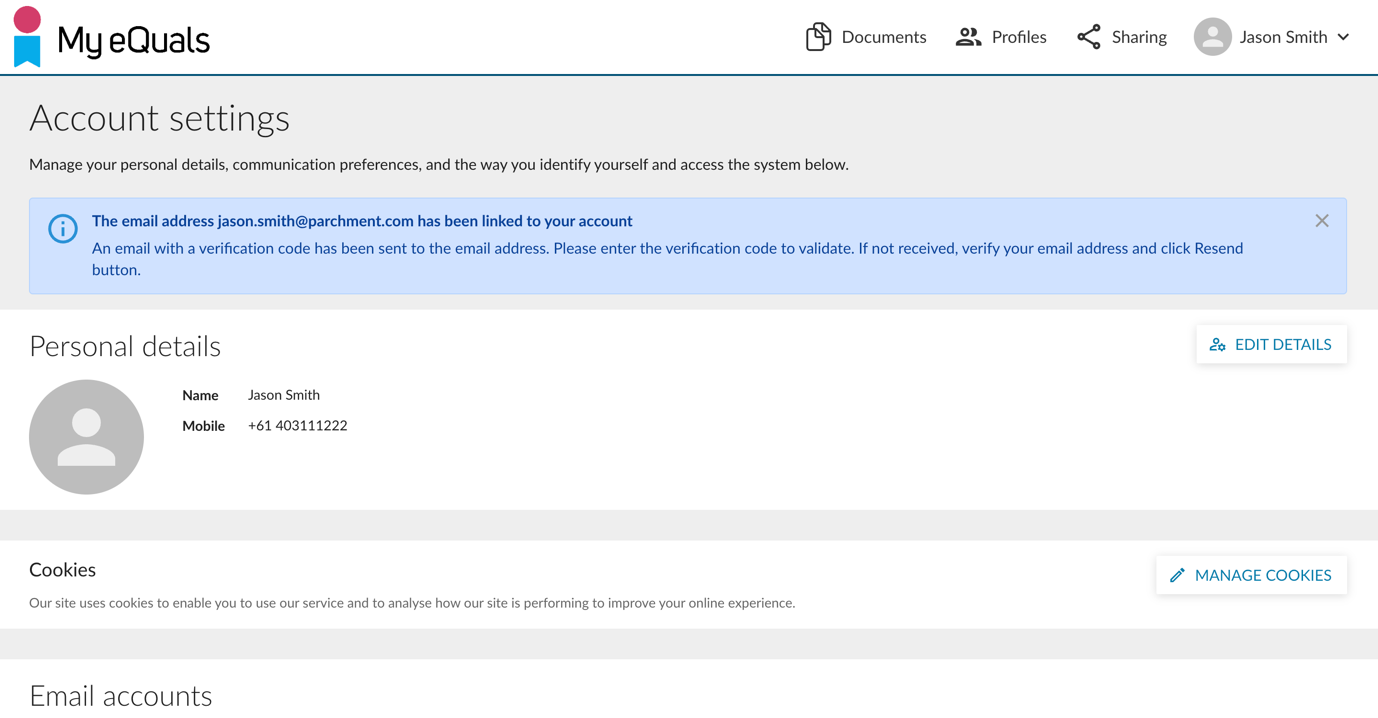
Step 6: Check your email and retrieve the verification code.
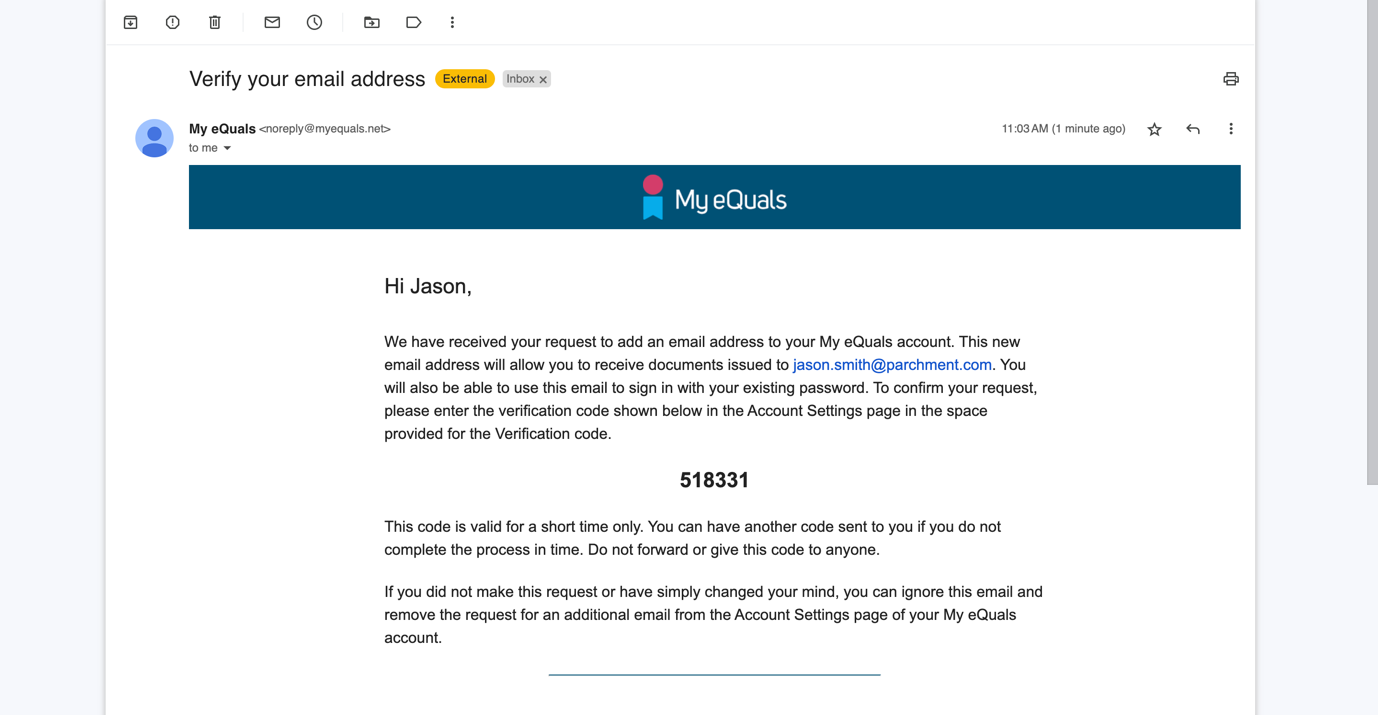
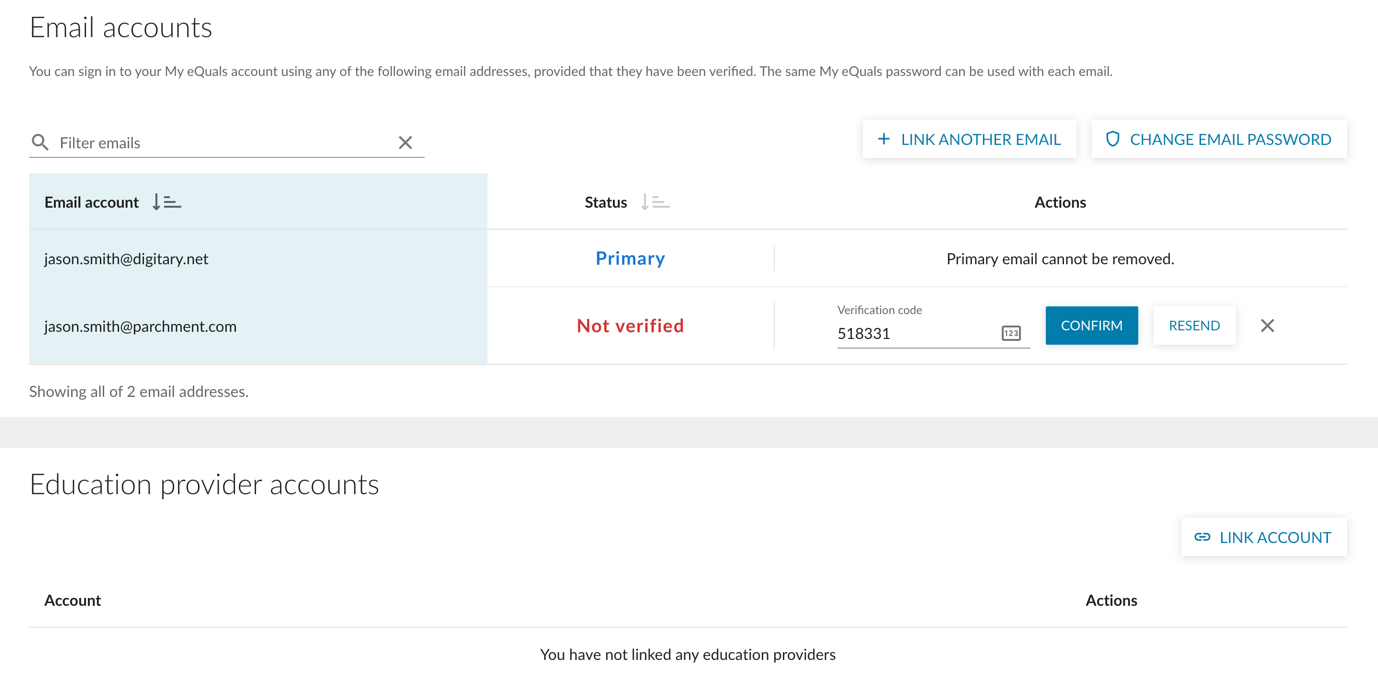
Step 7: Return to the "Email accounts" section. The status of the email address should be displayed as "Not verified”. Enter the verification code for the email address. Click on the "CONFIRM" button.
Step 8: Your personal email address is now added and verified, ready for use in logging in. Your password remains the same.
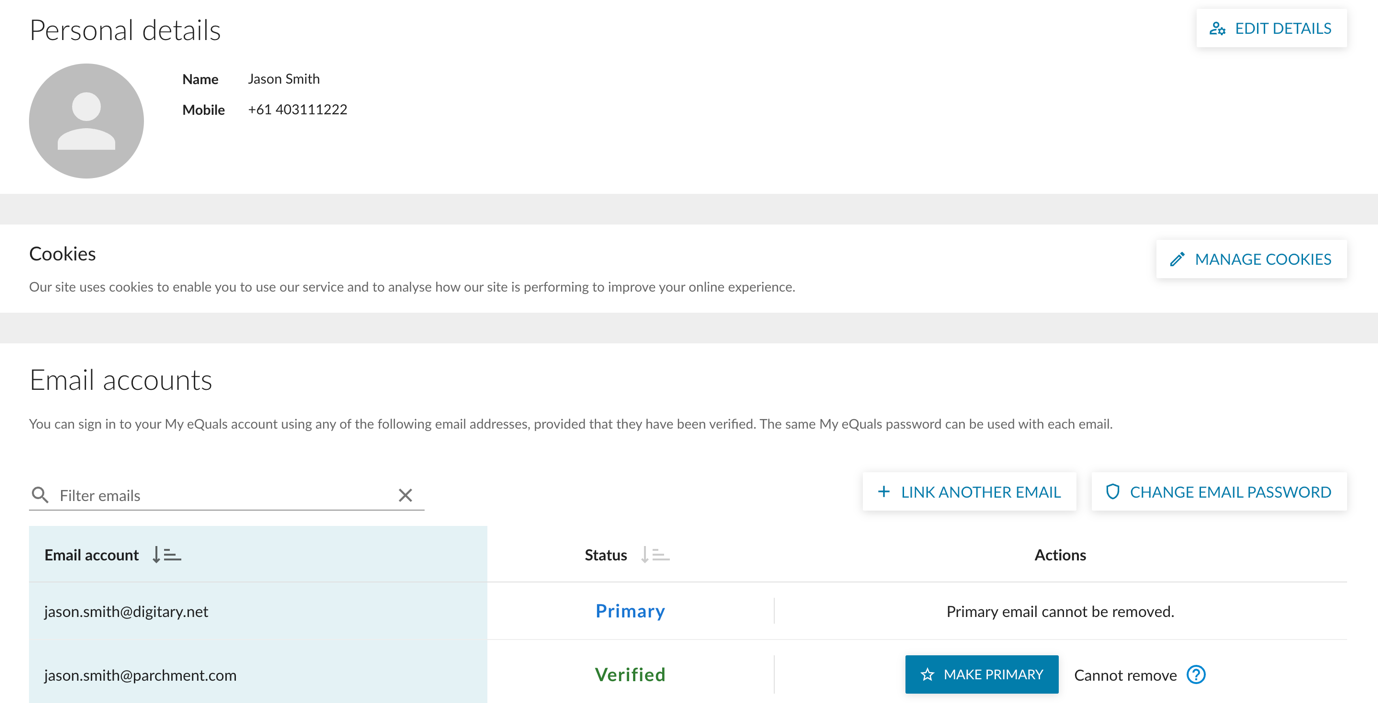
Additionally, if desired, you can designate the newly added personal email as the primary email address by clicking on the "MAKE PRIMARY" button.