How to link your institution or university account to your My eQuals account
First, sign into your My eQuals account in the usual way.
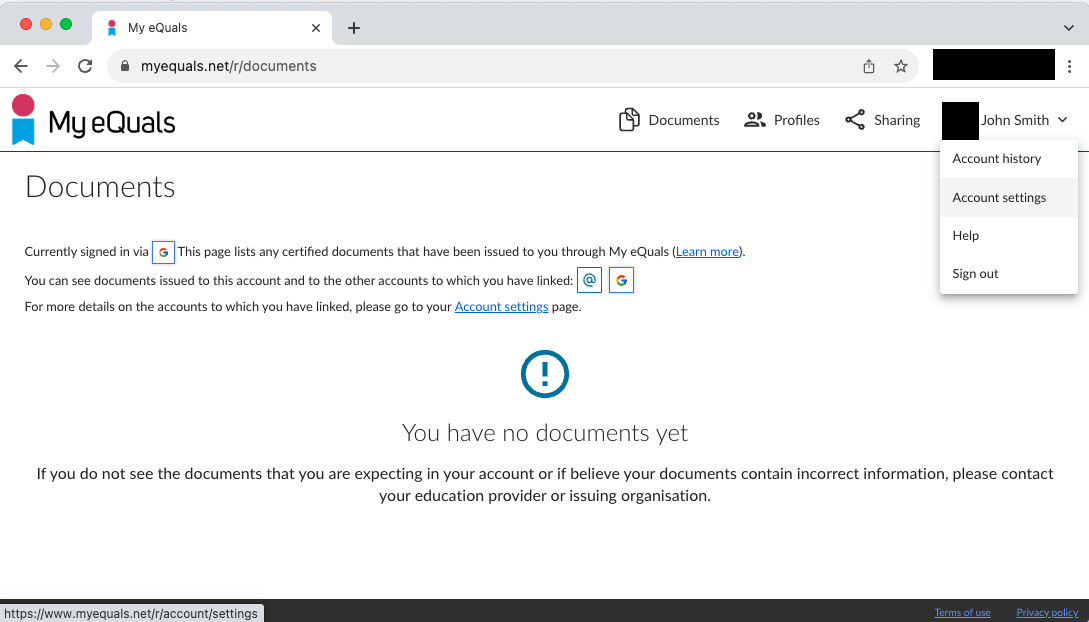
Then go into your account settings, this can be found in the top right of My eQuals, under your name.
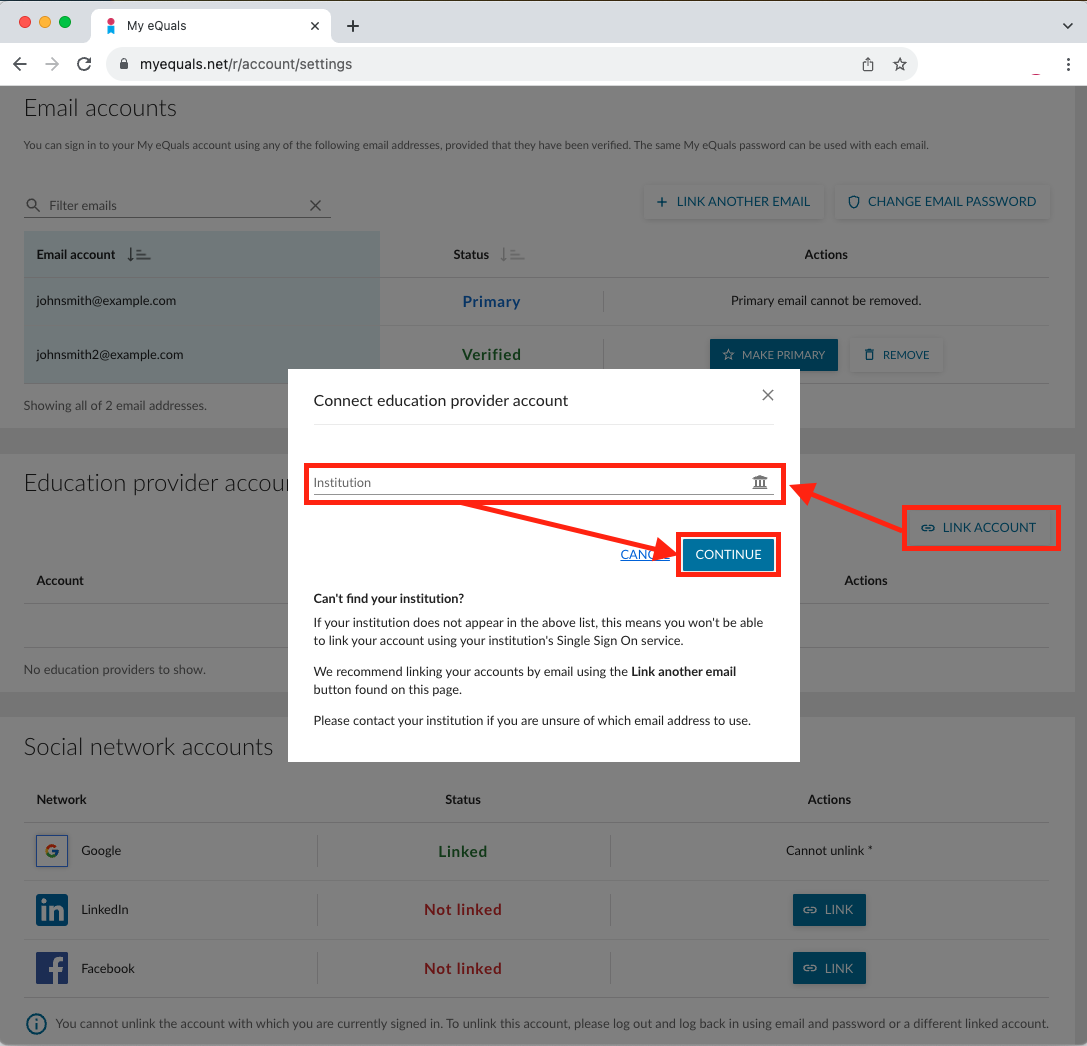
Below your email accounts you’ll find the Education Provider accounts section.
Click the Link Account button here, select your Institution or University from the list, and press Continue.
You will be directed to log in with your Institution or University credentials.
After a successful login, you will be returned to My eQuals and your Education Provider link will show in the Education Provider accounts section.
In future, you will be able to log into My eQuals using your Education Provider’s account credentials.
If your Institution or University is not available in the list of Institutions, this means that your institution has not opted to offer this method of login for you.