How a Share Recipient will see your document
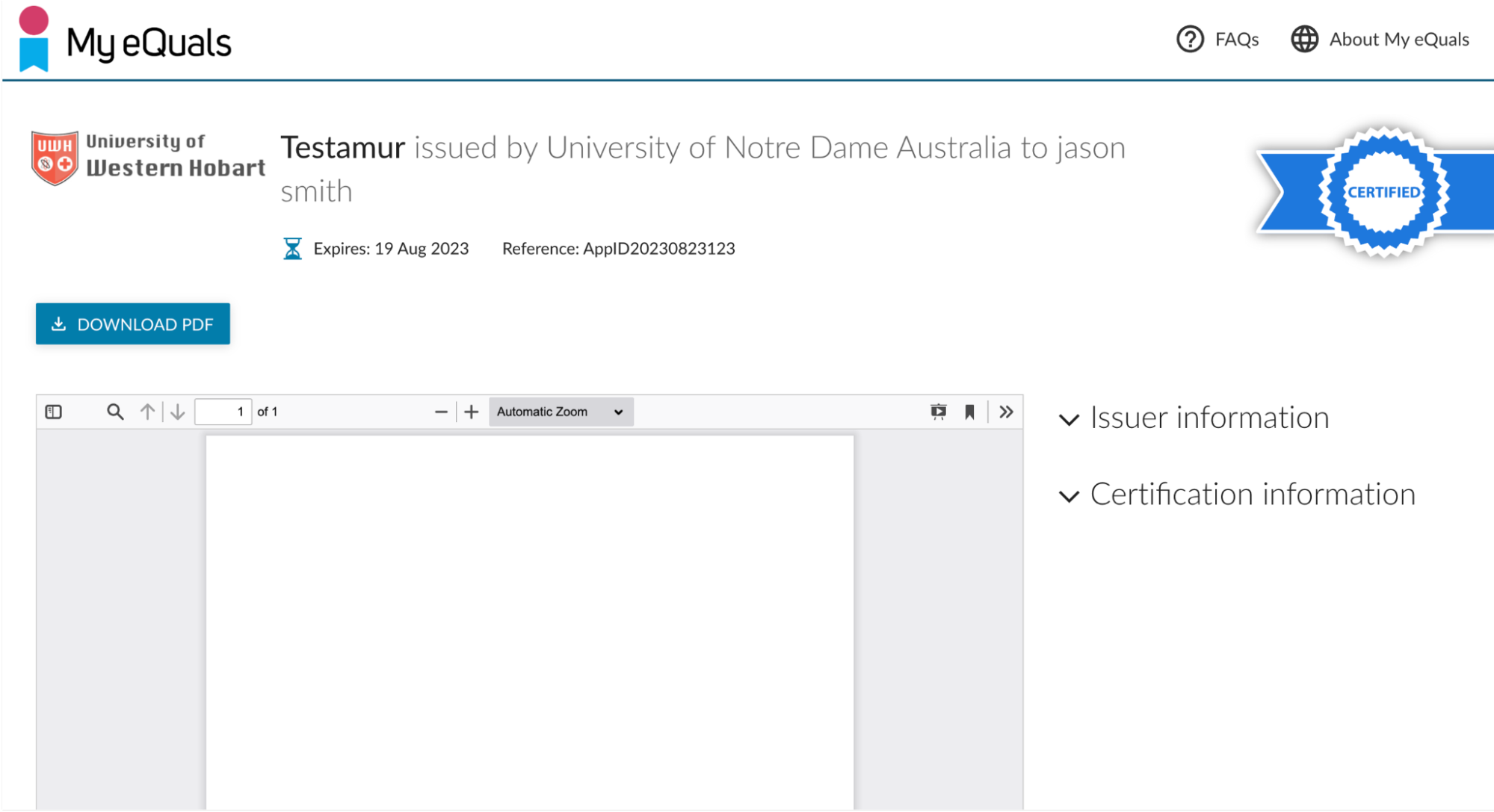
The below example shows how the document that you have shared via an email invitation on the My eQuals system can be viewed by the share recipient.
It assumes you have shared by email.
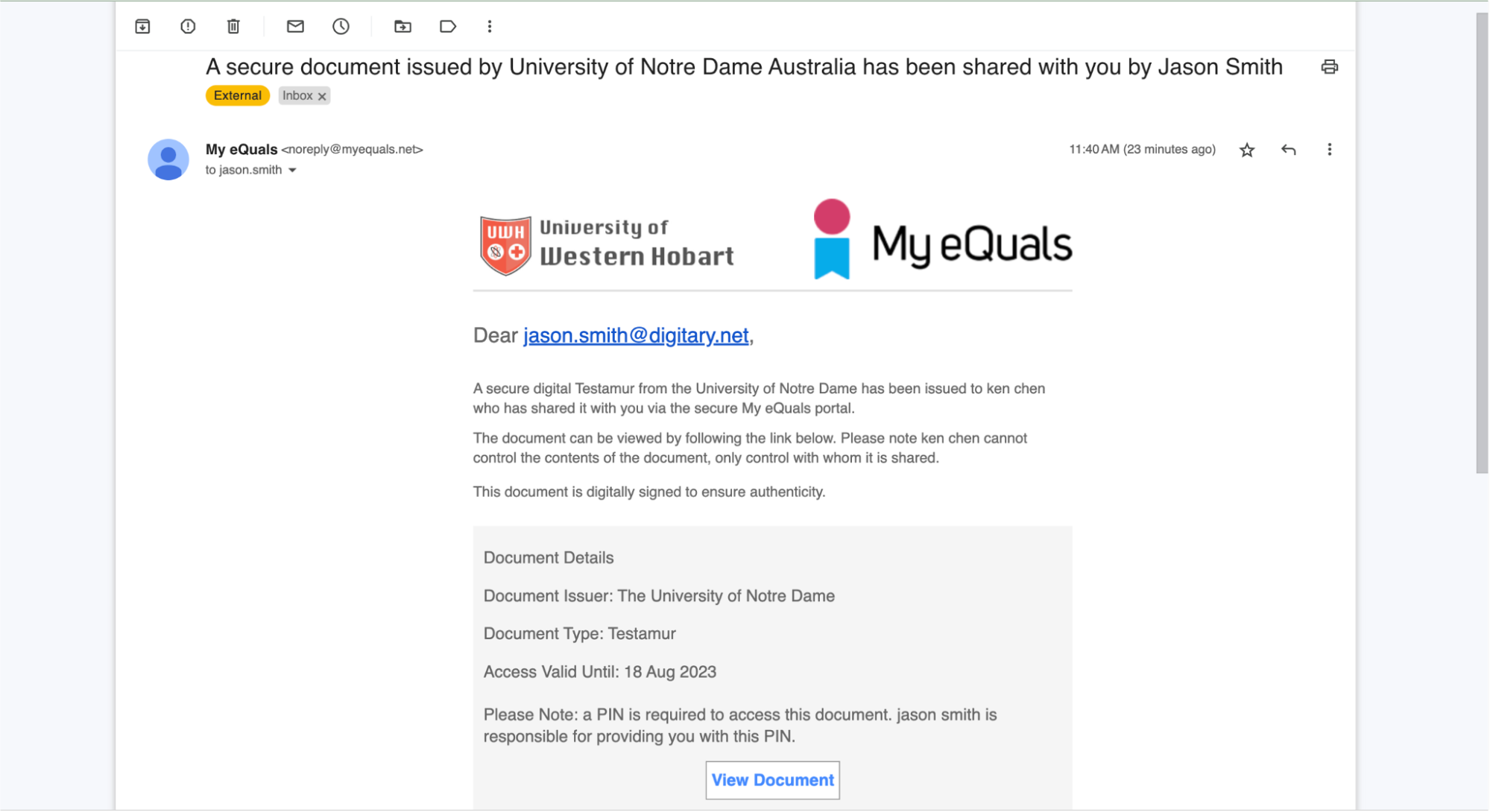
Step 1: The recipient will receive an email with the subject line "A secure document issued by {Your Education Provider} has been shared with you by {Your Name}."
They click the "View Document" button in the email to access the document.
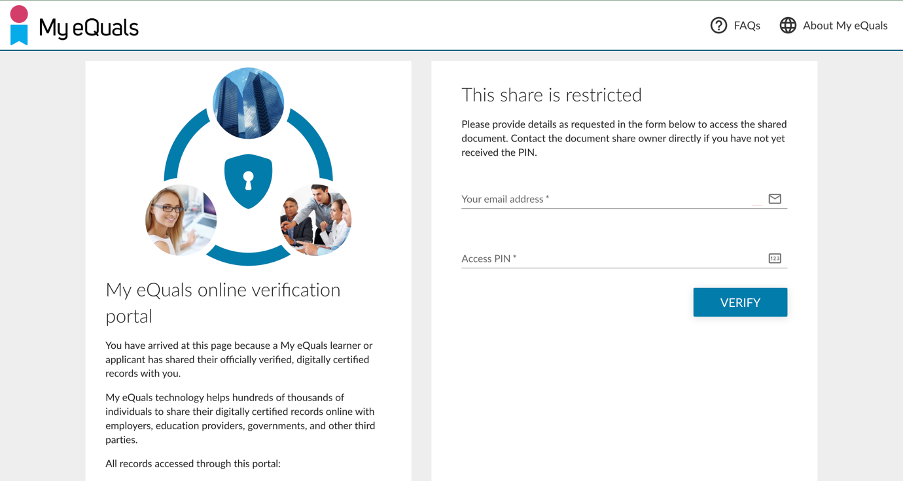
Step 2: For this type of share, the recipient will need to enter the email address to which the share was sent.
If you have specified that a PIN is required for access, the recipient will need to enter this also. The PIN is sent to the recipient automatically in a separate email when you create the email share.
The recipient clicks the VERIFY button.
Step 3: The recipient can now view your shared document