How to create a share link to your document that anyone can access
You may want to do this to include in a CV or LinkedIn profile page. A share link will create a unique URL to your document and anyone in possession of the URL will be able to view your document.
To share your document on the My eQuals platform with a URL link, follow these steps:
Generate an open link to your document.
Share the generated link with the intended recipient.
Here's how to do it:
Step 1: Log in to the learner portal at https://www.myequals.net.
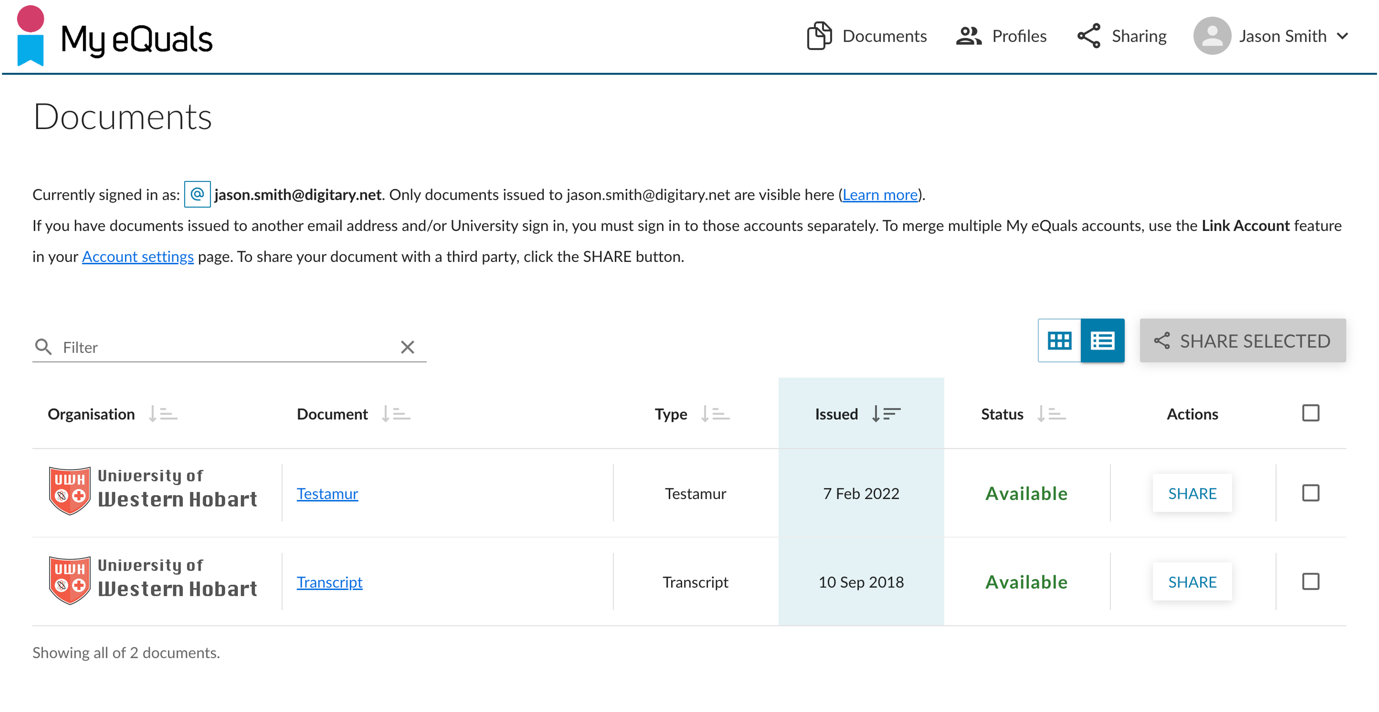
Step 2: Navigate to the document page and locate the specific document you want to share. Click on the "SHARE" button in the Actions column.
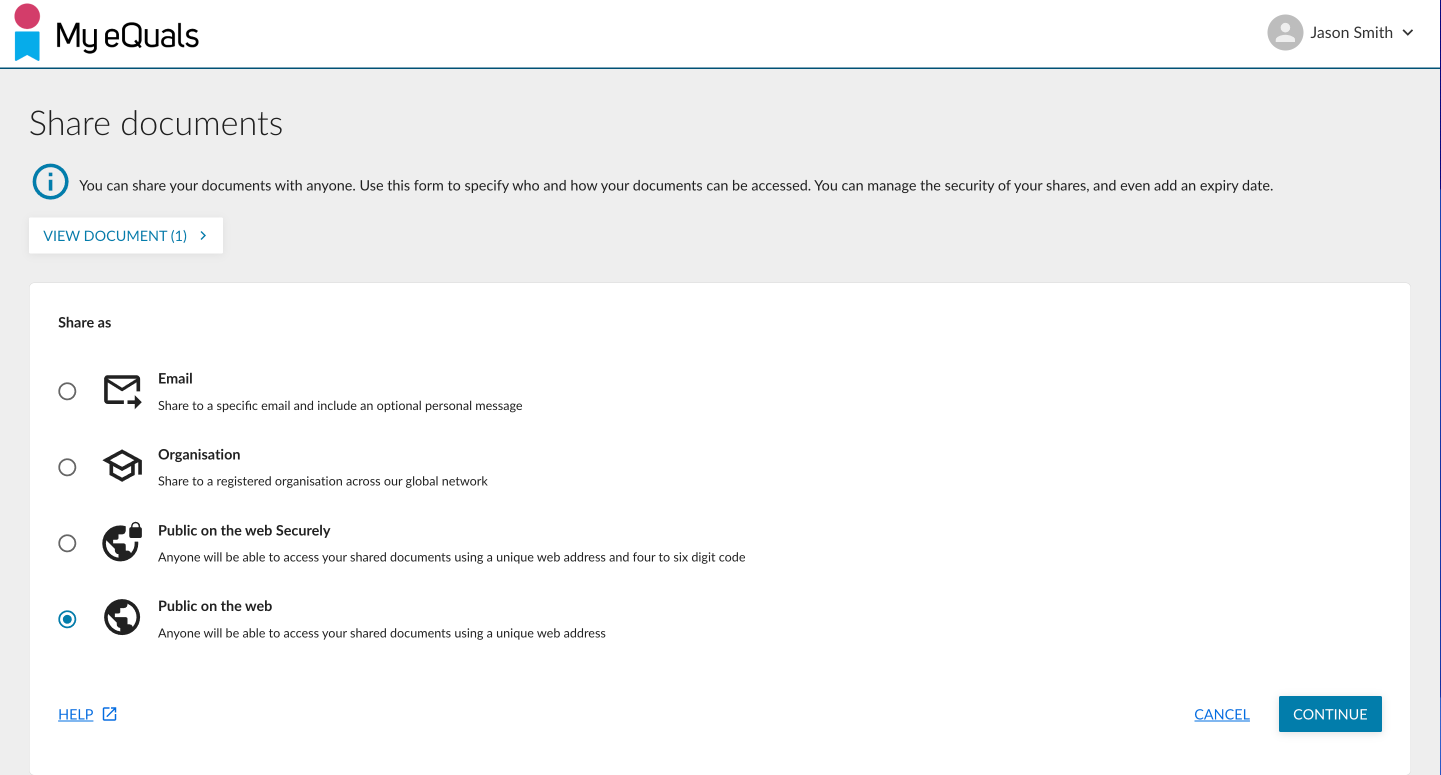
Step3: You can choose the share type from this page. Select “Public on the web”. Then click CONTINUE.
This will create a share link which will allow anyone to access your shared documents using a unique web address without any restriction.
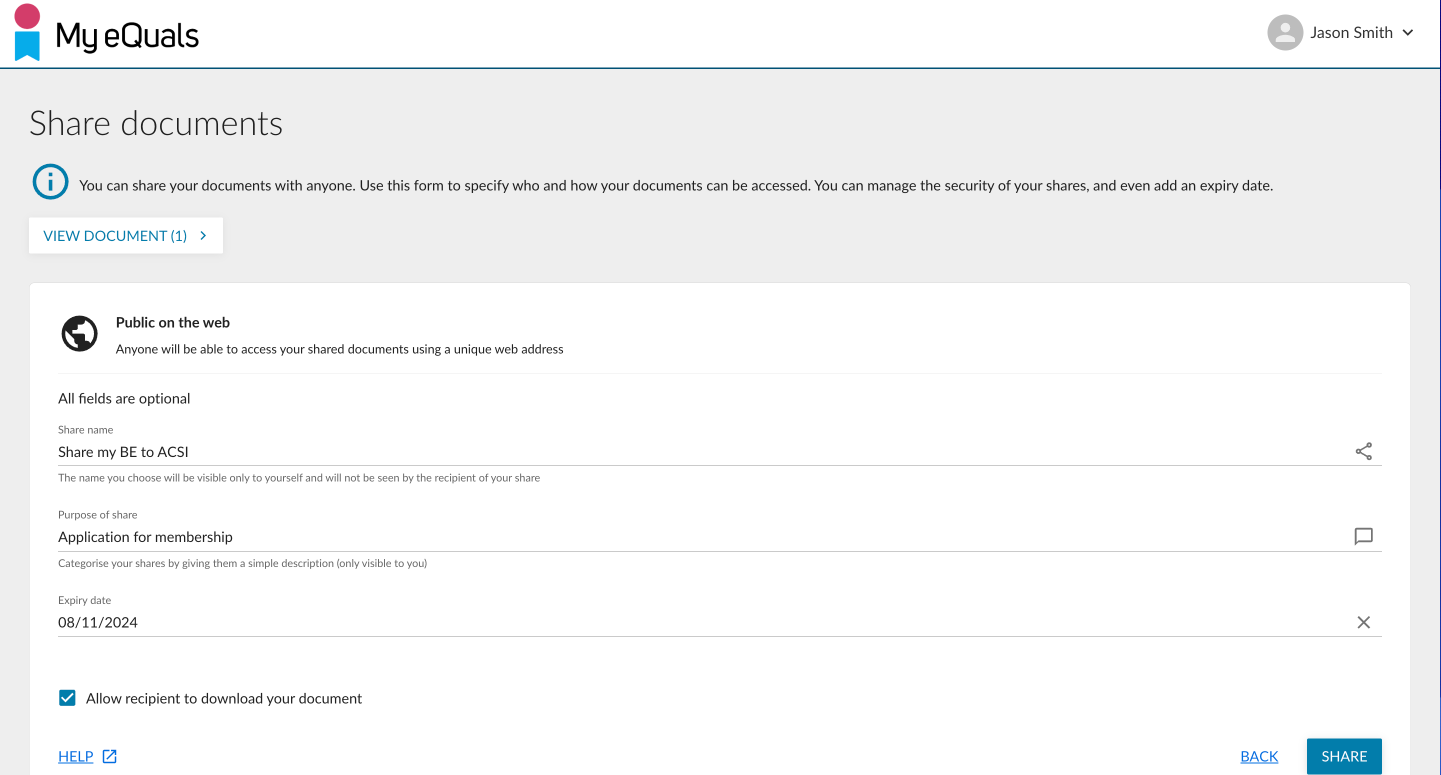
Step 4: A share form will appear after click CONTINUE. You can provide all the necessary details for the share like share name, purpose of the share, expiry date and allow recipient to download your document as needed. Then click on the "SHARE" button.
Step 5: After clicking the SHARE button, your share link will appear. click COPY to clipboard.
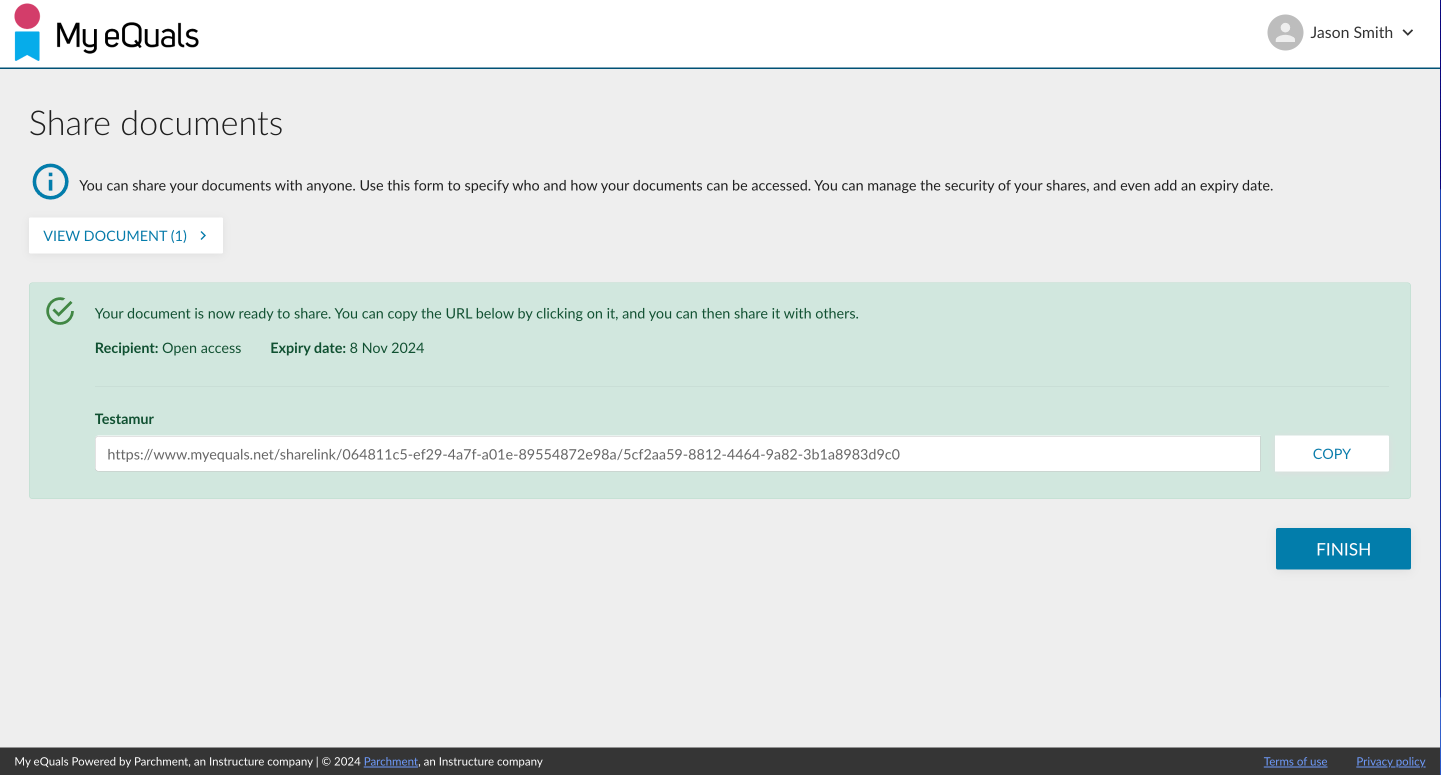
You have the freedom to distribute this link in any manner you prefer, e.g cv, linkedIn profile.
Step 6: If you want to share this link by email. Open your email client and create a new email for the third party you want to share the document with.
Step 7: Paste the copied link into the email body.
Step 8: Send the email to the recipient.
Once the recipient receives the email and clicks on the link, they will be able to access your document on the My eQuals platform without any other information.