
How to register on My eQuals with an email
To register an email account on the My eQuals learner portal, please follow these steps:
Step 1: Upon receiving an email notification informing you that a document has been issued to you and registration is required, open the notification email, and click on the "Register" button.
Step 2: You will be directed to a registration form. Fill in all the required fields.
Name: Enter your name. This supports brackets, eg. Andrew (Andy) Smith
Email: If the field is editable for you, edit the email address as required to enter a personal email address instead of your institution email to avoid concerns about your institution account expiring.
Click "NEXT".
Password: Create a password that is at least 14 characters long and contains at least:
one digit
one uppercase and one lowercase letter
one special character
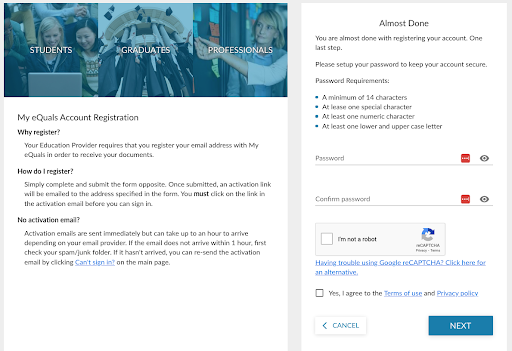
Step 3: Please ensure that you fill out all the required fields in the form, agree to the Terms of Use and Privacy Policy by ticking the "Yes" option, and then click the "NEXT" button.
Step 4: After completing the registration, you will receive an email with a verification code. Enter the verification code onscreen where prompted.
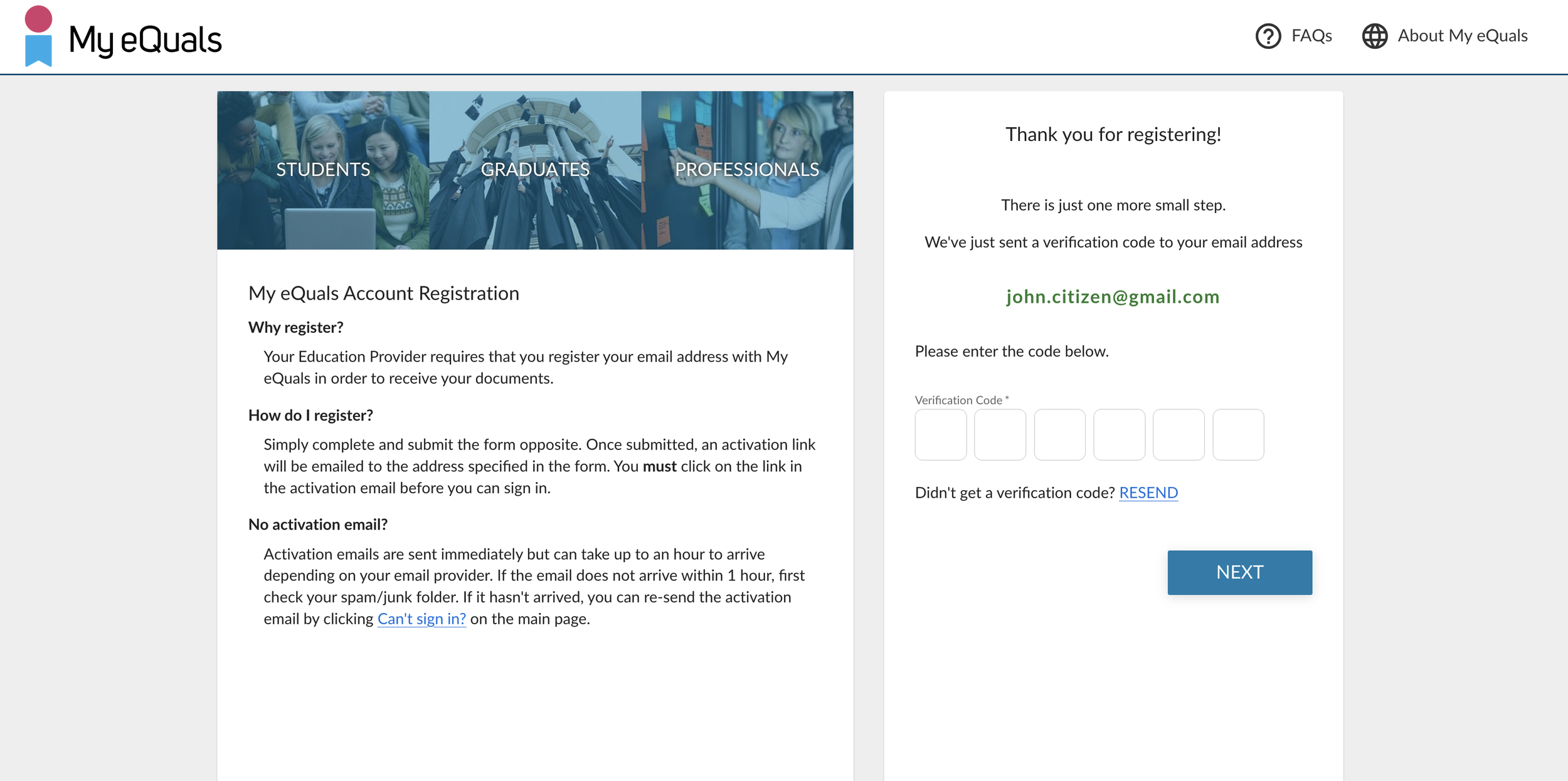
Step 5: Once you have entered the code, you will be able to sign in using your email and the password you have set up; your account is now activated and ready for login.