How to reset the password on your My eQuals account
To reset your password, please follow these steps:
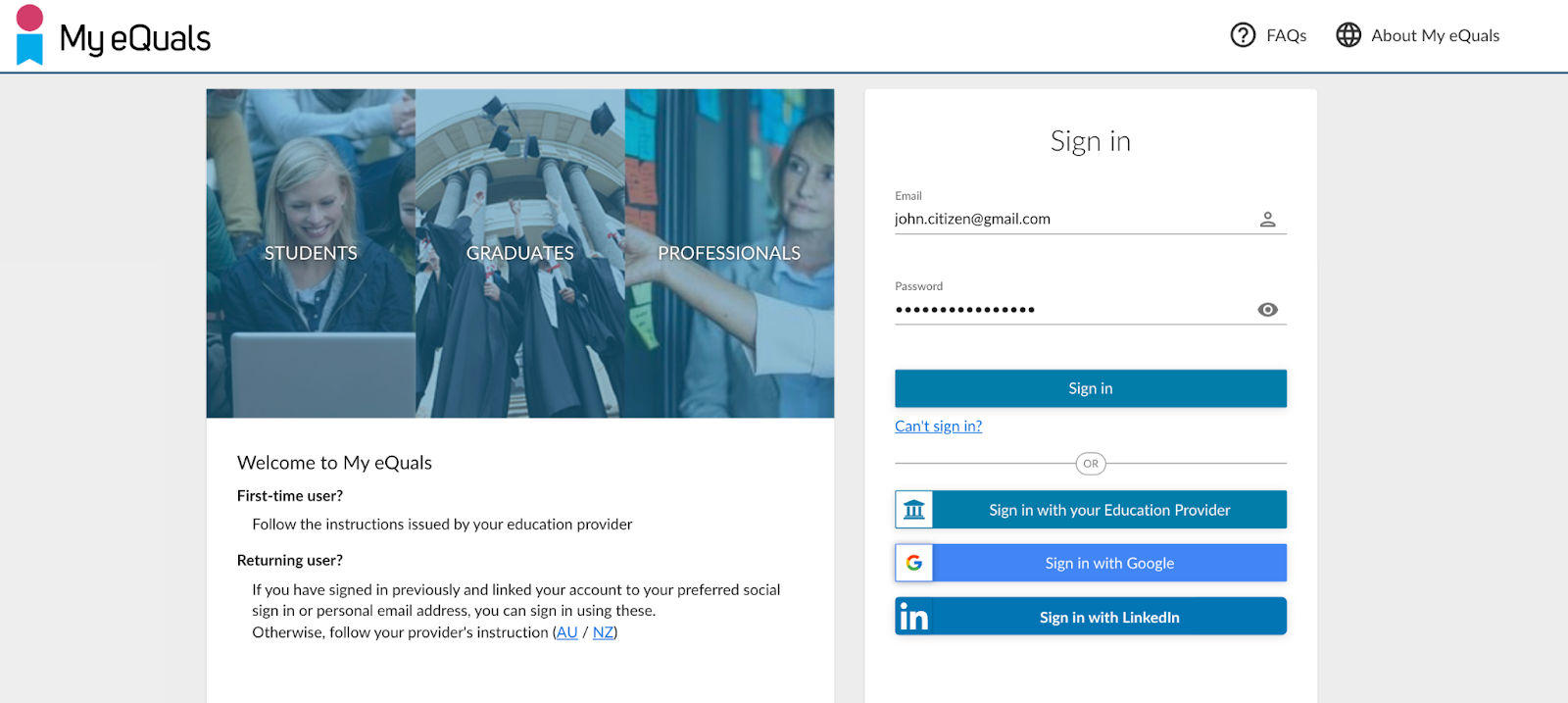
Step 1: Go to My eQuals learner portal login page. https://www.myequals.net
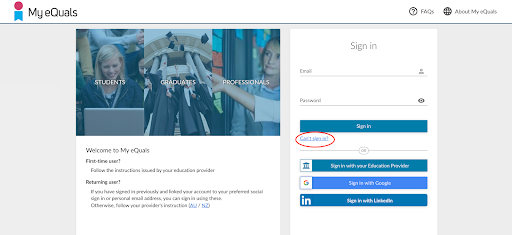
Step 2: Click on Can’t sign in?
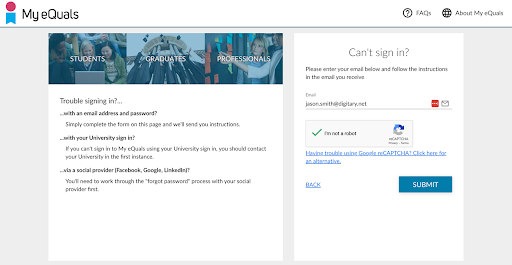
Step 3: Enter your login email address, check ‘I’m not a Robot’ option and click the SUBMIT button.
Step 4: Check your email inbox for the submitted email address. Look for an email containing a RESET PASSWORD button and click on it.
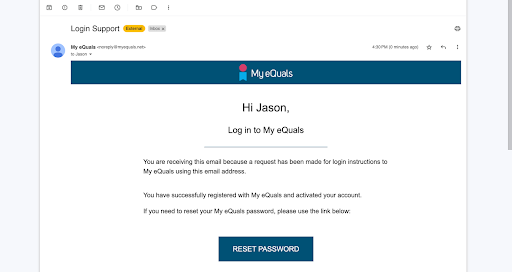
Step 5: You will be directed to the password reset page. Set a new password that meets the following requirements:
The password must be at least 14 characters long and contain:
at least one digit.
at least one uppercase and one lowercase letter and
one special character
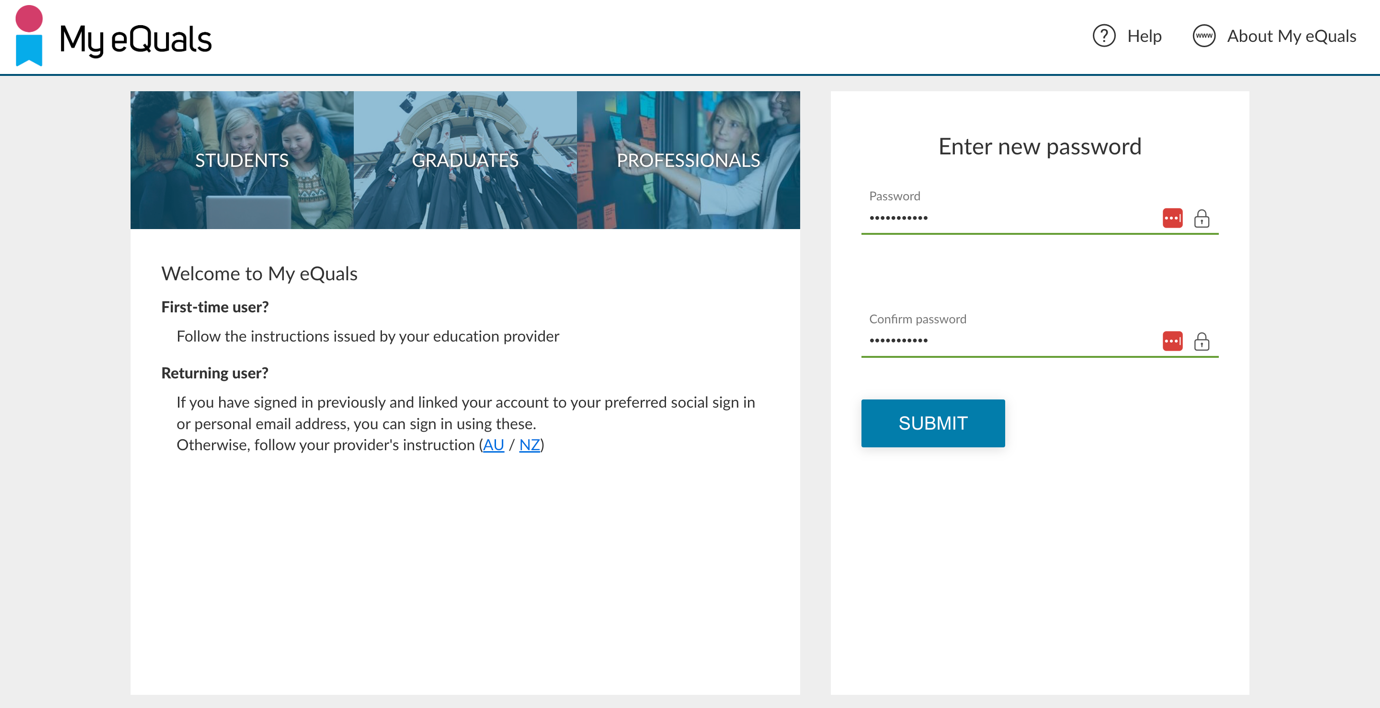
Step 6: After entering the new password, confirm it by repeating the same password, and then click the SUBMIT button.
Step 7: Congratulations! Your password has been successfully reset, and you can now use it to log in to your account.