
How to share your documents to an email address
You can easily share a document with anyone by email using the following steps:
Step 1: Log in to the learner portal at https://www.myequals.net.
Step 2: Navigate to the document page and locate the specific document you want to share. Click on the "SHARE" button in the Actions column.
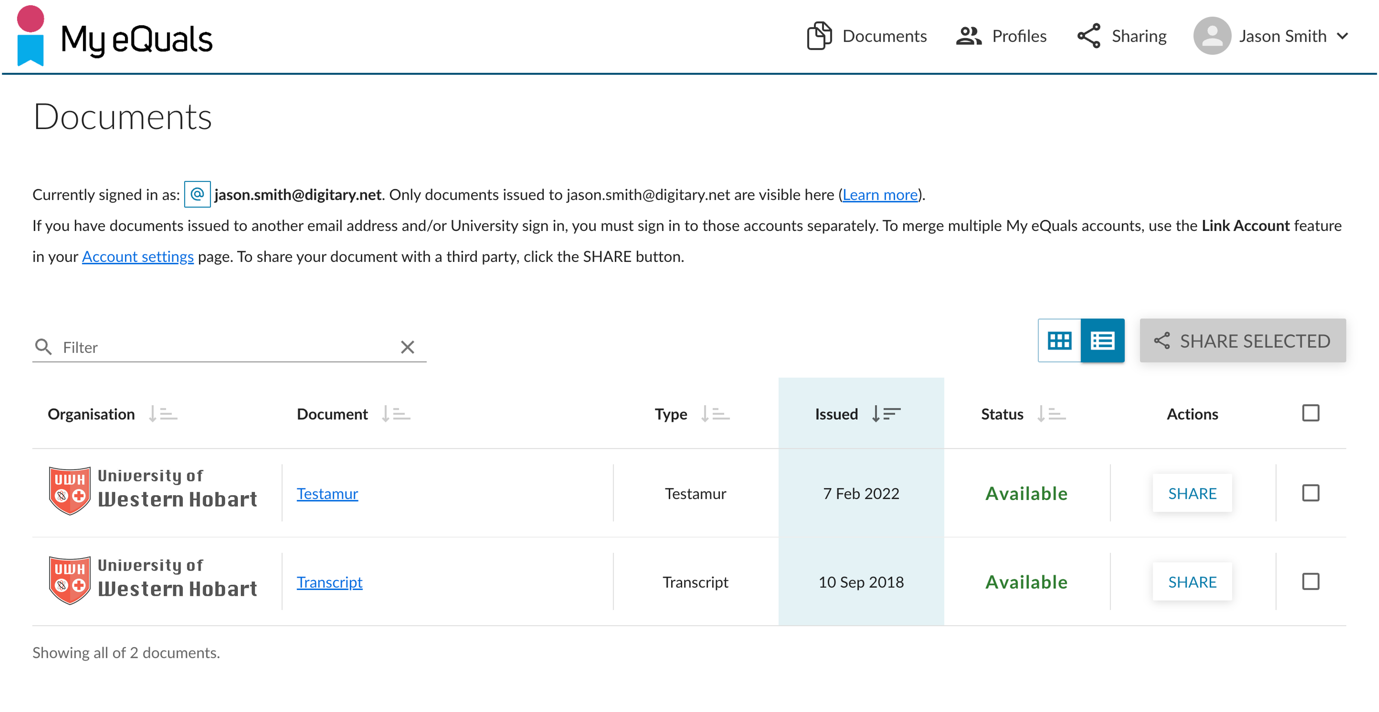
Step3: Select “Email”. Then click CONTINUE.
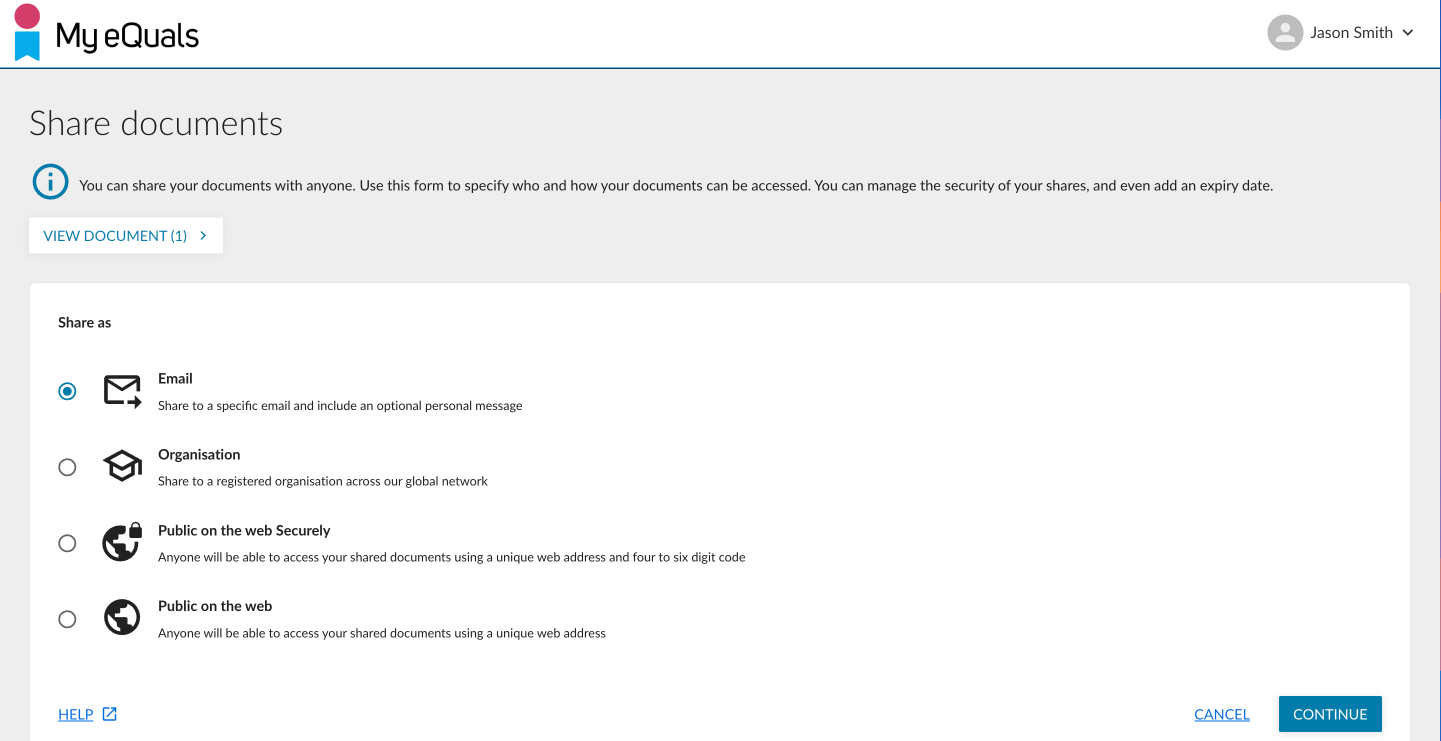
Step 4: You can enter the details required:
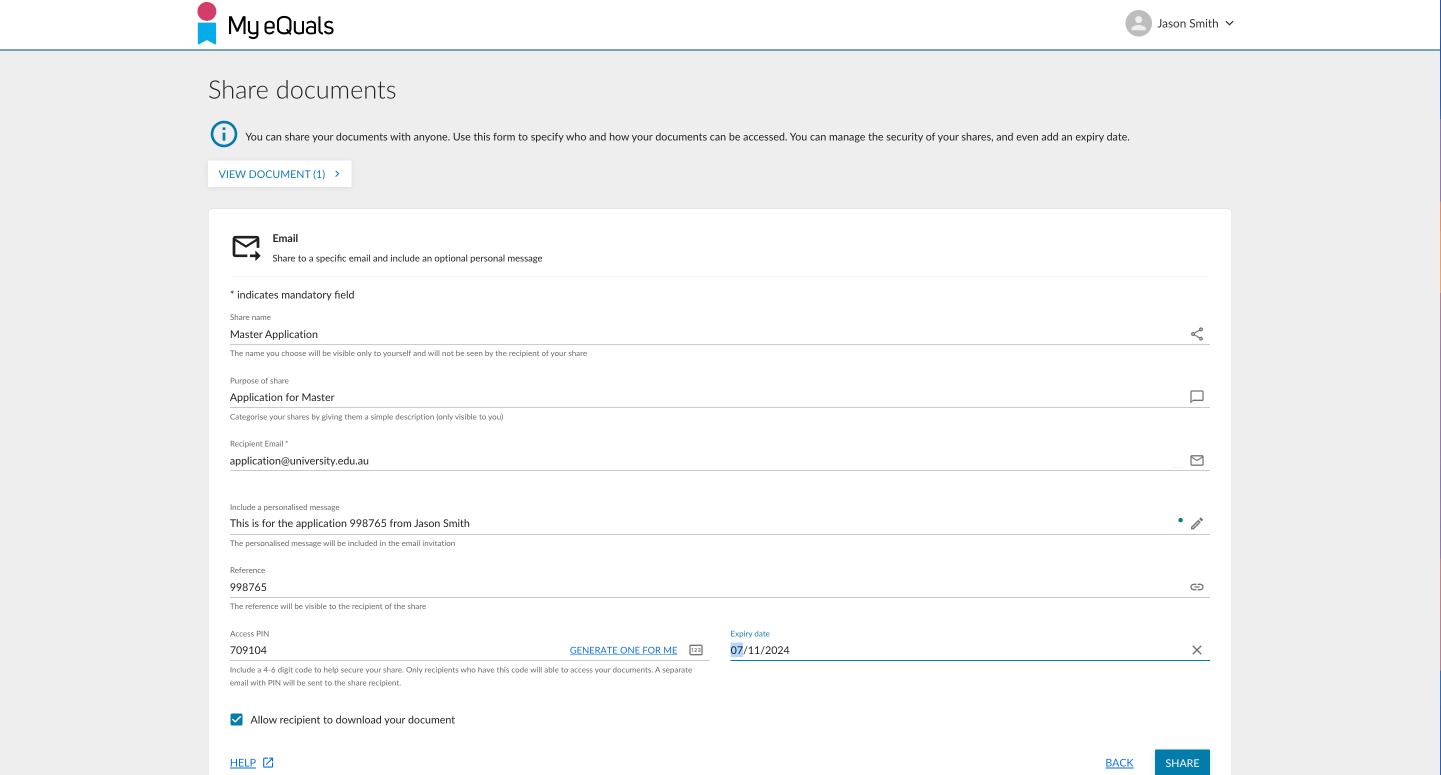
Name your share. This name will only be visible to you and not to the recipient.
Describe the purpose of the share for your own categorisation.
Enter the recipient's email address.
You have the option to include a personalised message which will be included in the email invitation to your recipient.
If you like, provide a reference that will be visible to the recipient.
Set an access 4-6 digit PIN if desired. You can also click “GENERATE ONE FOR ME”. In either case, a separate email will be sent to your share recipient containing the PIN.
You can add an expiry date to limit the visibility of the share until that date.
The box to allow the recipient to download your document is checked by default; uncheck if you prefer.
Then click on the "SHARE" button.
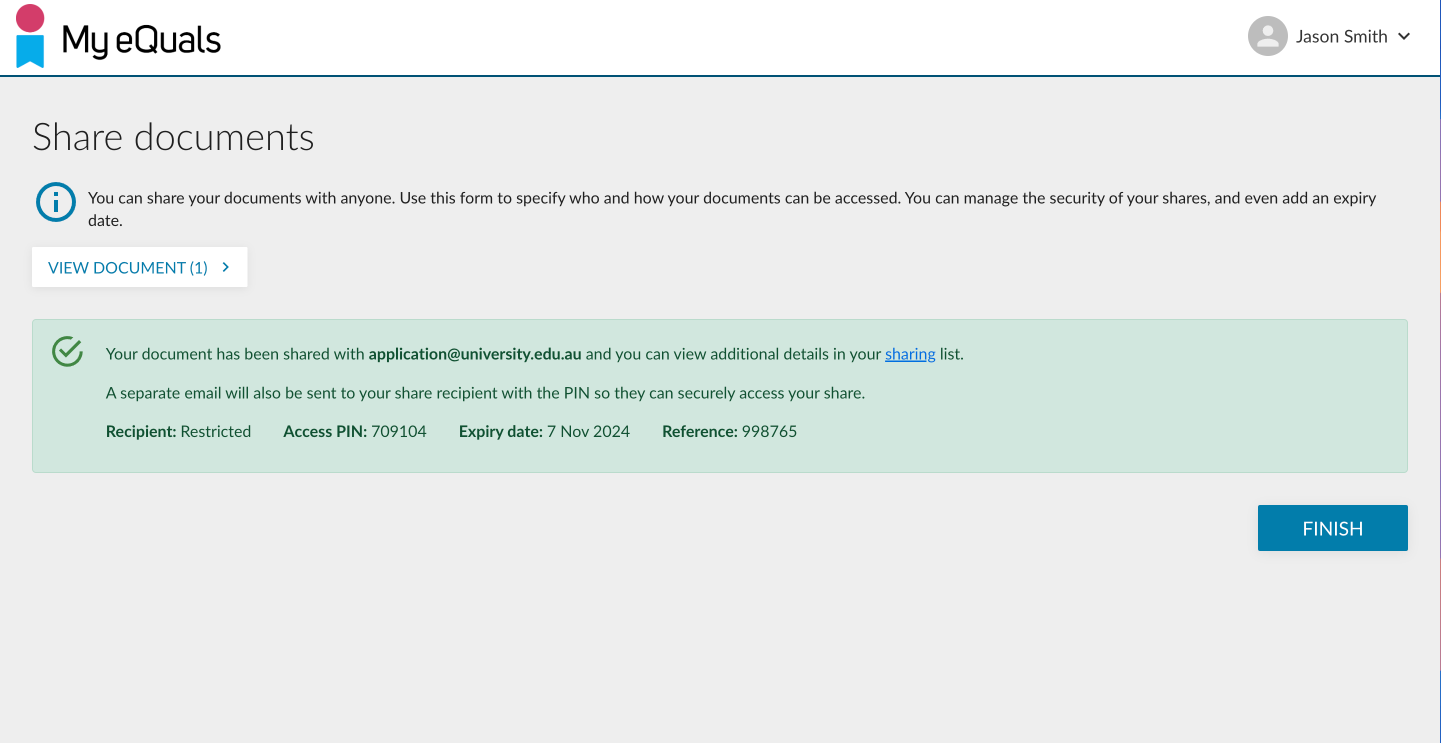
Step 5: Once you have completed the email share setup, an email containing a summary of the share will be sent to your recipient.
If a PIN has been set, a separate email containing the PIN will also be sent.
You can click the "FINISH" button to finish the process.
Please Note:
Share fails - You will be notified by email if a share fails for any reason to reach its destination. If you have used a share credit, it will be returned to you.